
Activate services - Adding data to the Biodiversity Module
Or alternatively, read below for a step by step guide.
Activating services
Sandy requires you to add additional data depending on the service you would like to
activate. Many of these services are interlinked, so where the same information is required in
more than one place, your data will cross populate across multiple services.
To access this section, click on Activate Services, in the menu to the left of the screen. This section is divided into the following services:
-
Carbon - Calculate your carbon footprint, benchmark the carbon performance of each enterprise, reduce your livestock feed emissions.
-
Biodiversity - Understand and score the biodiversity of each field based on land uses and management practices.
-
Water protection - Check that you are compliant with nitrogen uptake and nitrate leaching rules and develop a water protection improvement plan.
To activate each service and start adding your data, click Manage data.

You will then need to work through each section in turn, within the service you want to
activate. You are provided with a list of the data items required for each section.
Chronologically, click Setup on section to start entering your data. As with other sections, for each section in Activate Services, data items are divided in to categories:
-
REQUIRED
-
ENCOURAGED
-
OPTIONAL
Only REQUIRED is mandatory to be filled in.
Biodiversity - Cropping data

This section requires details of:
-
Crop type and name
-
Planting and harvest dates
-
Tillage method
-
Working area
Click on Setup to tart entering your data. You can either enter this data directly into Sandy or via the Excel template. Further guidance on this is available in other help documents.
To add cropping data, ensure the correct farm and field are selected, then click + Add crop. To delete or edit existing records, click the bin icon or pencil icon, respectively.

Enter your data using the drop down menus and boxes. Click Save to confirm. To make
changes to multiple existing records, you can use the Edit multiple function. Further guidance on this is provided in a separate help document.
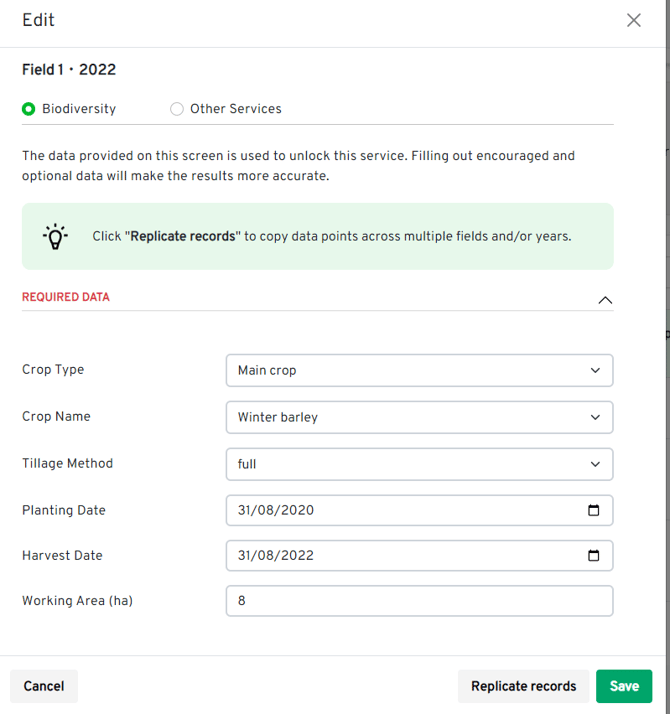
To create new records simultaneously, you can use the Replicate records function. Further
guidance on this is provided in a separate help document.
Biodiversity - Land use
This section requires details of any relevant land use categories, types and items. To start entering your data, click on Setup. If you have entered these items in the mapping section,
this will automatically be populated. You can enter data directly into Sandy in this section or
via the Excel sheet. Further guidance on this is provided in a separate instruction document.

To add a land use item, select the relevant farm, field, and year, then click on + Add land use. To delete or edit existing records, click the bin icon or pencil icon, respectively. To edit multiple existing data records simultaneously, you can use the Edit multiple function. Further guidance on this is provided in a separate help document.
Enter your data using the drop down menus and boxes. Click Save to confirm.

To create new records simultaneously, you can use the Replicate records function. Further
guidance on this is provided in a separate help document.
Biodiversity - Management practices
This section asks for details of relevant management practices at a field level. To start entering your data, click Setup. Any relevant land use features entered in the land use
section will appear here.
Select the relevant year, land use item, and field, then click on the feature in the menu list to add further details.

Enter the required information, then click Save to confirm.